Why Realistic Blood FX is a top-tier mod mod for Minecraft 1.21.132
Developed by the talented creator Lightscribe, Realistic Blood FX stands out as a highly recommended selection for your Minecraft client. It is fully optimized, compatibility-tested, and brings a major upgrade to the gameplay experience in Minecraft version 1.21.132.
⚙️ Quick Resource Specs
| Mod Creator | Lightscribe |
| Latest Version | 1.21.132 |
| Supported Game Versions | 1.21.132 |
| File Size | 3.32 MB |
| Last Updated | |
| Total Downloads | 16,962 downloads |
Realistic Blood FX v2.2.9
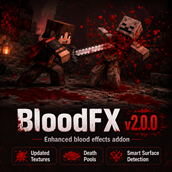
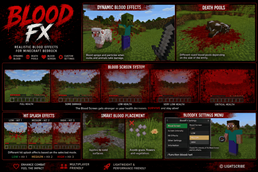
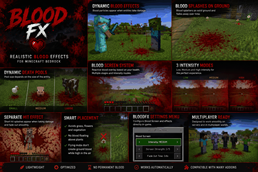
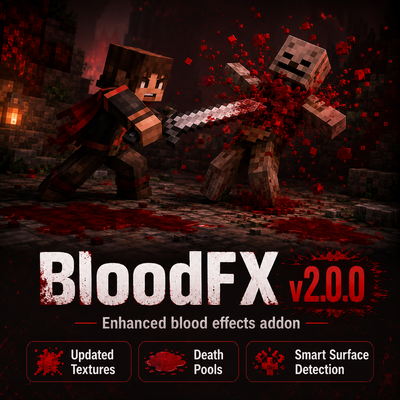
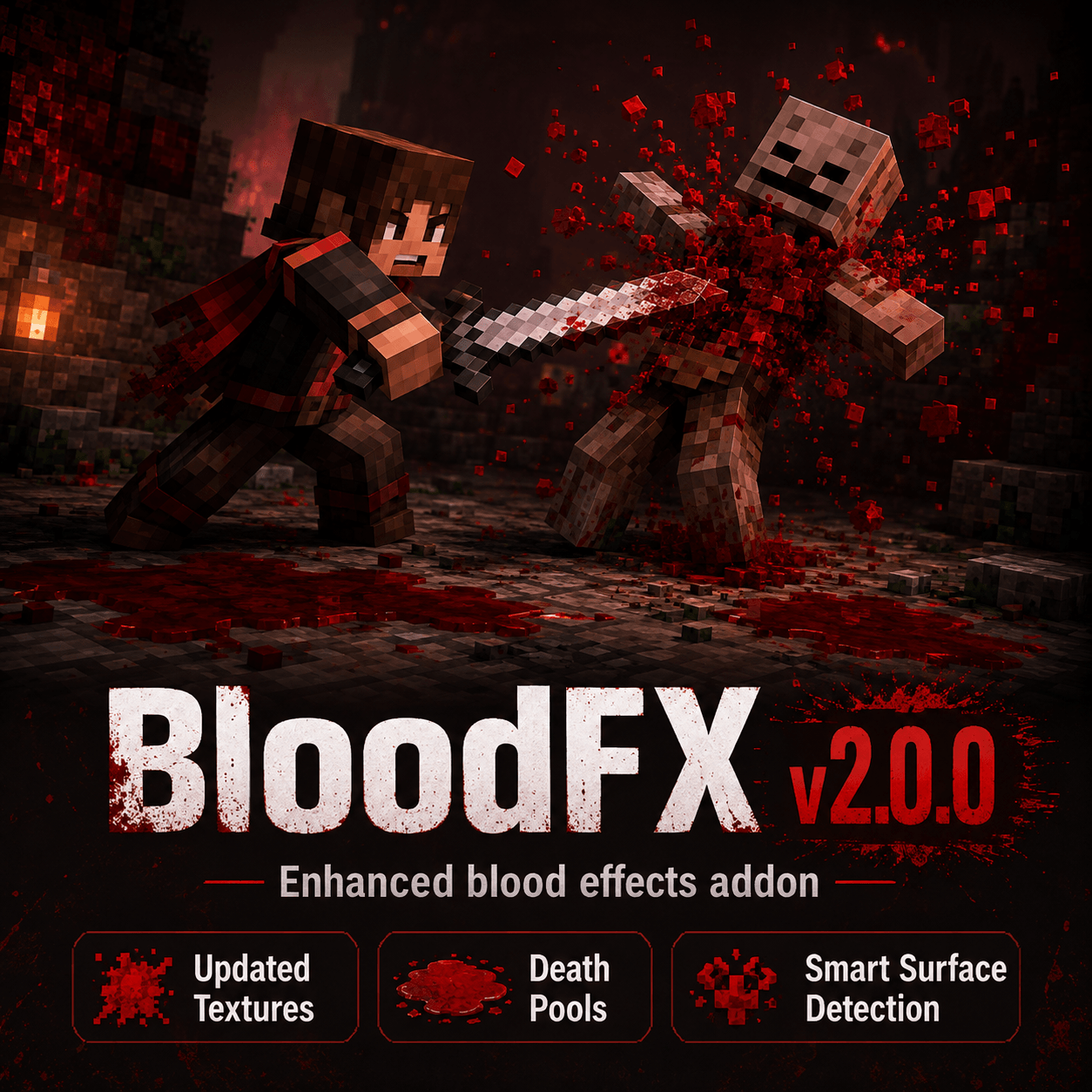
Realistic Blood FX enhances combat in Minecraft Bedrock Edition with dynamic blood particles, temporary ground splatters, death pools, and a new reactive Blood Screen system.
Hits feel more noticeable without permanently covering the world in effects. Blood appears around damaged entities, can reach nearby solid ground, fades automatically, and scales depending on the situation.
The addon is designed for survival worlds, multiplayer servers, combat addons, and weapon packs while keeping the effects temporary and performance-friendly.
Blood Screen
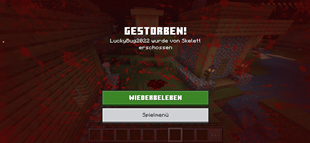
Players can now receive a dynamic first-person Blood Screen effect when taking damage or reaching low health.
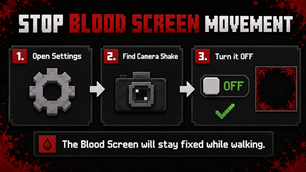
Important: Blood Screen Movement
If you do not want the Blood Screen effect to shake or move while walking, open the Minecraft settings and turn Camera Shake off.
The Blood Screen supports three intensity modes:
- LOW – subtle screen effects
- MEDIUM – balanced default intensity
- HIGH – stronger and more visible effects
Each mode uses multiple blood stages that become progressively stronger as the player's health decreases.
Taking damage also creates a short splash effect on the screen. This temporary hit effect fades away automatically while the persistent low-health Blood Screen remains visible underneath when required.
The Blood Screen can also be disabled through the BloodFX settings.
Dynamic Blood Effects
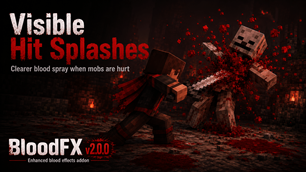
When supported players, animals, or mobs take damage, blood particles and splashes can appear around the impact area.
Blood reaching a valid solid surface can create temporary ground splatters.
The amount and appearance of blood varies naturally to prevent every hit from looking identical.
Death Pools
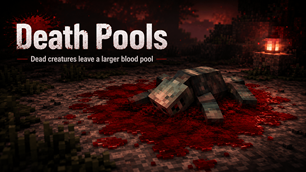
Defeated entities can leave behind a larger temporary blood pool.
Pool size depends on the size of the entity:
- Small animals and mobs create smaller pools
- Normal mobs create medium-sized pools
- Large entities create larger pools
- Players receive a larger and more noticeable death pool
All pools disappear automatically after a short period.
Smart Placement
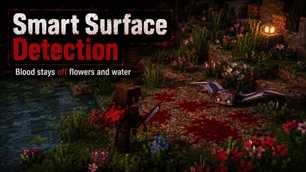
Blood effects are designed to avoid unrealistic placement whenever possible.
Ground effects avoid vegetation such as grass, flowers, and similar plants, helping prevent blood pools from floating above blocks or appearing incorrectly on foliage.
Flying creatures also avoid creating ground effects while they are too far above the surface.
Features
- Dynamic blood particles when entities take damage
- Temporary blood splashes on solid ground
- Different death-pool sizes depending on entity size
- Larger blood pools for player deaths
- Dynamic first-person Blood Screen
- LOW, MEDIUM and HIGH Blood Screen modes
- Multiple Blood Screen intensity stages
- Separate temporary hit-splash effect
- Smoothly fading screen effects
- Persistent Blood Screen at low health
- Blood Screen can be disabled
- Temporary effects that automatically disappear
- Smart ground placement
- Avoids grass, flowers and similar vegetation
- No permanent blood left in the world
- Automatic operation during normal gameplay
- Multiplayer-friendly design
- Optimized textures and lightweight effects
- Compatible with many combat and weapon addons
Installation & Setup
Installation
- Download the BloodFX
.mcaddonfile. - Open the downloaded file with Minecraft Bedrock Edition.
- Minecraft will automatically import the included packs.
- Open the settings of your world.
- Activate the BloodFX Behavior Pack.
- Activate the BloodFX Resource Pack.
- Start or restart the world.
Both packs are required for all BloodFX features and textures to work correctly.
First Start
BloodFX works automatically after the Behavior Pack and Resource Pack have been activated.
You do not need to manually enable blood effects every time you enter the world.
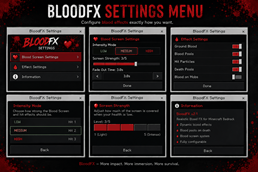
BloodFX Settings Menu
BloodFX includes an in-game settings menu.
Open the menu with:
/function blood/set
From the settings menu you can configure the BloodFX effects for your world.
Blood Screen Settings
The Blood Screen has multiple intensity options:
OFF
Disables the first-person Blood Screen completely.
LOW
Uses lighter blood coverage and the weakest temporary hit splash.
MEDIUM
Balanced Blood Screen intensity with a stronger hit splash.
HIGH
Provides the strongest Blood Screen and hit splash effects.
The selected mode also controls how strongly blood appears on the screen as the player's health decreases.
Dedicated Server Installation
BloodFX can also be installed on a Minecraft Bedrock Dedicated Server.
1. Rename the Addon
Download the .mcaddon file and rename the file extension:
BloodFX-2.1a.mcaddon
to:
BloodFX-2.1a.zip
Extract the ZIP file.
Inside you will find:
BP – Behavior PackRP – Resource Pack
2. Copy the Packs to Your Server
Copy the BP folder to:
behavior_packs/BloodFX-BP
Copy the RP folder to:
resource_packs/BloodFX-RP
You can rename the folders to BloodFX-BP and BloodFX-RP for easier identification.
3. Find the Pack UUIDs
Open:
behavior_packs/BloodFX-BP/manifest.json
Find the UUID and version inside the header section:
"header": {
    "uuid": "YOUR-BEHAVIOR-PACK-UUID",
    "version": [2, 1, 3]
}
Then open:
resource_packs/BloodFX-RP/manifest.json
and find the Resource Pack UUID and version:
"header": {
    "uuid": "YOUR-RESOURCE-PACK-UUID",
    "version": [2, 1, 3]
}
Important: Always use the UUID and version from the header section. Do not use the module UUID.
4. Add the Behavior Pack to the World
Open your world folder:
worlds/YOUR_WORLD/
Create or edit:
world_behavior_packs.json
Add:
[
    {
        "pack_id": "YOUR-BEHAVIOR-PACK-UUID",
        "version": [2, 1, 3]
    }
]
5. Add the Resource Pack to the World
In the same world folder, create or edit:
world_resource_packs.json
Add:
[
    {
        "pack_id": "YOUR-RESOURCE-PACK-UUID",
        "version": [2, 1, 3]
    }
]
6. Existing Packs
If your server already uses other addons, do not delete the existing entries.
Add BloodFX as another entry:
[
    {
        "pack_id": "EXISTING-PACK-UUID",
        "version": [1, 0, 0]
    },
    {
        "pack_id": "BLOODFX-PACK-UUID",
        "version": [2, 1, 3]
    }
]
Remember to include a comma between entries.
7. Restart the Server
Completely stop and restart the Bedrock Dedicated Server.
During startup, check the server log. BloodFX should appear in the Pack Stack.
If the log reports:
Configured pack ... was not found and was ignored
check that:
- The UUID exactly matches the
header.uuidfrommanifest.json. - The version exactly matches the
header.version. - BP is located inside
behavior_packs. - RP is located inside
resource_packs. - The correct world folder was edited.
Updating BloodFX
When updating BloodFX, always check the new manifest.json files.
If the internal pack version has changed, update the version in both:
world_behavior_packs.json
and:
world_resource_packs.json
The version in these files must match the version in the corresponding pack's manifest.json.
Player Menu Access
Server operators can control whether normal players are allowed to open the BloodFX settings menu.
Open the BloodFX settings with:
/function blood/set
Operators will see an additional Player Menu Access option:
- ALLOW PLAYERS – normal players can open their personal BloodFX settings.
- OP ONLY – only server operators can open the BloodFX settings menu.
The Player Menu Access option is only visible to operators.
Normal players never see this administrative setting.
When player access is disabled, normal players who try to open /function blood/set will receive a short message informing them that the BloodFX settings are restricted to operators.
This allows server owners to decide whether players may customize their own Blood Screen settings or whether all BloodFX configuration should remain under administrator control.
Multiplayer / Dedicated Servers
BloodFX can also be used on Minecraft Bedrock Dedicated Servers.
Make sure both the Behavior Pack and Resource Pack are assigned to the world.
Players joining the server need the Resource Pack in order to see the custom BloodFX textures and Blood Screen effects.
Updating BloodFX
When installing a newer BloodFX version:
- Stop or leave the world.
- Replace the previous BloodFX packs with the new version.
- Make sure both the new Behavior Pack and Resource Pack are active.
- Restart the world or server.
If Minecraft continues to display textures from an older version, remove the old BloodFX Resource Pack from the device and import the current version again.
5. If the Client have the old texture, pls delet the old addon in the client (Minecraft Settings)
Compatibility
Designed for Minecraft Bedrock Edition.
Realistic Blood FX can be used alongside many survival, combat, weapon, mob, and gameplay addons.
For the full visual experience, both the Behavior Pack and Resource Pack must be enabled.
Support Future Development ❤️
Do you enjoy this addon? You can support my work through Buy Me a Coffee.
Every donation helps me dedicate more time to creating new addons, improving existing projects, fixing issues and responding to community suggestions more quickly.
Support is completely optional. Feedback, ideas and feature requests are always welcome and help make future updates even better.
Click here for Buy Me a Coffee
Thank you for supporting Lightscribe and the development of more Minecraft Bedrock content! 🙏
The Ultimate Guide to Realistic Blood FX
If you are exploring the vast world of Minecraft modifications, Realistic Blood FX by Lightscribe is a standout mod that deserves your attention. With over 16,962 downloads, it has become a staple for players looking to enhance their experience. As the creator describes it, this project is "Realistic blood particle effects for Minecraft Bedrock. Automatic hit splatter and death blood pools, optimized for performance and mobile compatibility.". Whether you are a veteran builder constructing massive cities, or simply a casual player looking to upgrade your survival world, this guide will provide you with all the essential details on how Realistic Blood FX alters the game.
What Makes It Special?
Unlike standard mods that simply alter superficial elements, Realistic Blood FX digs deep into the game's engine to provide a cohesive, performance-focused experience. Lightscribe has clearly spent significant time refining the project to ensure that every aspect feels polished and responsive for version 1.21.132.
Installation Guide
Getting Realistic Blood FX up and running is straightforward. Follow these step-by-step instructions:
- Verify Your Version: Ensure your Minecraft launcher is set to version 1.21.132.
- Install Mod Loader (if required): If this is a mod, download the compatible loader (Forge, Fabric, NeoForge).
- Download the File: Click the secure download button above to retrieve the official file from CurseForge.
- Move the File: Place the downloaded file into your `mods`, `shaderpacks`, or `resourcepacks` folder depending on the mod type.
- Launch and Enjoy: Open Minecraft, navigate to the respective settings menu, and activate Realistic Blood FX.
Compatibility & Performance
Compatibility is robust. Realistic Blood FX is designed specifically for version 1.21.132, taking full advantage of the latest engine optimizations. Since this is heavily focused on optimization, you can expect significant frame rate improvements on both low-end and high-end hardware.