Why Azure Visuals is a top-tier shader mod for Minecraft 1.21
Developed by the talented creator itzmikey, Azure Visuals stands out as a highly recommended selection for your Minecraft client. It is fully optimized, compatibility-tested, and brings a major upgrade to the gameplay experience in Minecraft version 1.21.
⚙️ Quick Resource Specs
| Mod Creator | itzmikey |
| Latest Version | 1.21 |
| Supported Game Versions | Minecraft 1.21+ |
| File Size | 2.79 MB |
| Last Updated | |
| Total Downloads | 91,111 downloads |
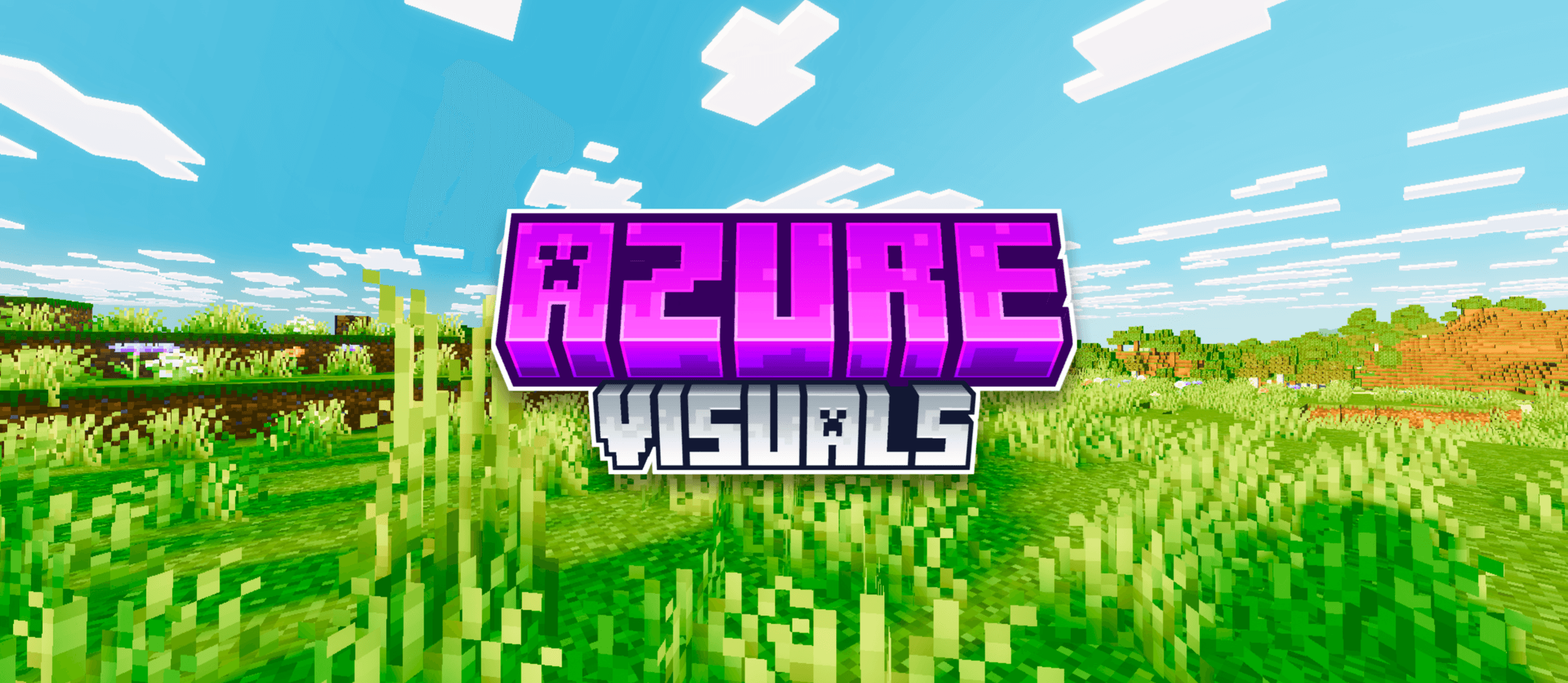
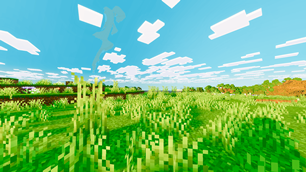
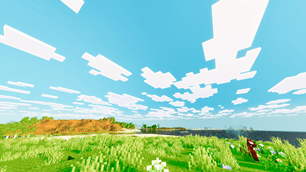
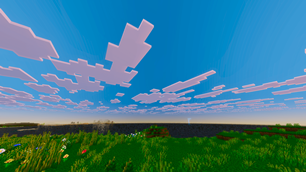
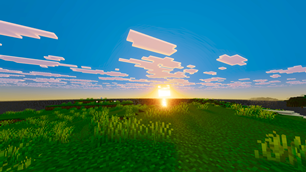
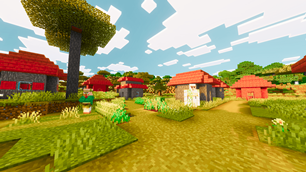
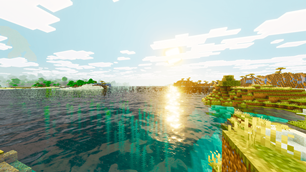
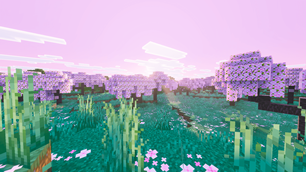
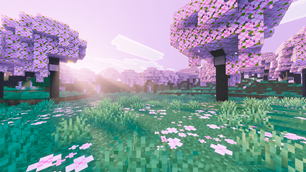
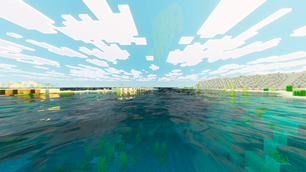
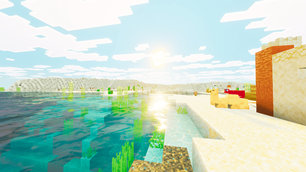
Azure Visuals is my loudest pack. Cyan skies, lime green grass and saturation pushed as far as I could take it without the world falling apart.
What this changes
Saturation
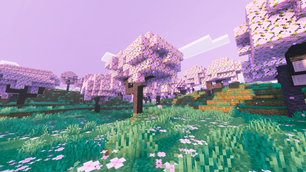
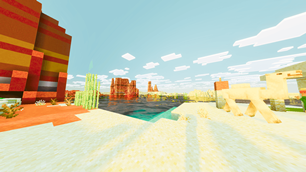
Every color in the game is pushed hard. Nothing is left dull or washed out, in any biome, at any time of day. This is the whole pack in one line.
Sky
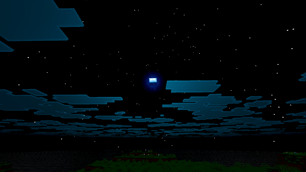
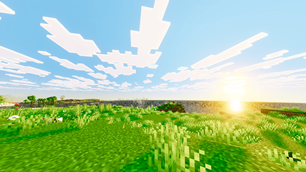
Deep azure blue running into cyan, with hard white clouds sitting on top of it. The clouds actually separate from the sky instead of blending into it.
Grass and foliage
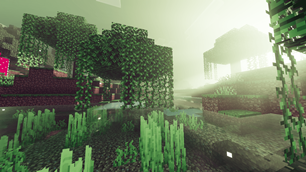
Grass and leaves go bright lime green. Plains and forests read as loud and alive rather than the muted green vanilla gives you.
Contrast
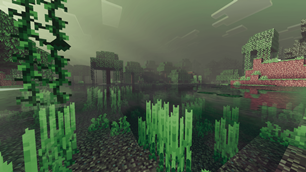
Shadows are kept strong so the bright colors have something to sit against. Without that the whole thing would just look flat and blown out.
Terrain and trees
Bark and terrain pick up more depth up close, so they hold together even with the saturation turned this far up.
PBR
Blocks react to light with real depth, which is where that close up detail comes from.
PBR is also the heaviest part of any Vibrant Visuals pack, so it is not forced on you. It ships as a subpack, which means you can switch it on or off yourself. When you activate Azure Visuals in Global Resources, pick the version you want. Turn PBR off if your device runs hot or drops frames.
Requirements
THIS PACK IS FOR VIBRANT VISUALS ONLY
IT DOES NOT WORK WITH MB LOADER
Vibrant Visuals must be ON. This pack is built for Bedrock's Vibrant Visuals renderer. The pack will not do anything if it is off.
Where to turn it on: Settings > Video > Graphics > Vibrant Visuals
If that toggle is not there, your device or version does not support Vibrant Visuals yet.
About my other packs
I have several other shader packs on my page, and they are not recolors of this one. Each is built with its own style. The atmospherics, lighting, color grading, water and PBR are set up separately in every pack, so no two of them behave the same way in game.
If you want to explore the rest, everything I have made is here:
Installation
- Download the .mcpack file
- Open it. Minecraft imports it on its own.
- In your world go to Settings > Global Resources and activate Azure Visuals
- Pick the subpack you want. PBR on for the full look, PBR off for better performance.
- Turn on Settings > Video > Vibrant Visuals
- If the lighting still looks the same, leave the world and load it again once
Permissions
YOU ARE ALLOWED TO
- Make a review or showcase video. YouTube, TikTok, Instagram, any platform. All I ask is that you link this CurseForge page in the description.
- Use the pack in your own gameplay videos and streams. No permission needed, go ahead.
- Modify the pack for your own personal use. Tweak whatever you want on your own device. The modified version has to stay with you though. It cannot be uploaded or shared publicly anywhere.
- Share this page with friends or in servers.
YOU ARE NOT ALLOWED TO
- Upload a modified version. Editing my pack and releasing it under your own name, or claiming it as your own work, is not allowed.
- Use assets from this pack in your own pack. If you want to use something from it, contact me on Discord first and ask.
- Put the download behind your own link. If you make a review video, link my official project page and nothing else. No monetized links, no link shorteners, no ad links, and no direct download that you host yourself.
- Reupload the pack anywhere else.
FAQ
The pack is not working. Nothing changed after I installed it.
I get this comment a lot, and almost every single time the reason is the same. Vibrant Visuals is turned off.
This pack only works when Vibrant Visuals is ON. That is written clearly at the top of this page. With it off, the pack loads fine but nothing on your screen changes, because there is no renderer for it to work with. The pack is not broken.
Go to Settings > Video > Graphics > Vibrant Visuals and switch it on. If you cannot find that option at all, your device or Minecraft version does not support it yet.
Please check this before commenting that the pack does not work.
The colors are too strong for me.
That is the point of this one, so I cannot really dial it down without it becoming a different pack. Try Mike Visuals or Skyfall Visuals instead, both of those stay close to vanilla.
My device heats up a lot while using this pack.
That is PBR. It is the heaviest thing in the pack and it is on by default.
Go to Global Resources, select Azure Visuals, and switch to the subpack with PBR off. You lose some close up detail, but the colors and the sky stay exactly the same.
If it still runs hot after that, lower your Vibrant Visuals settings in the video menu and drop your render distance a few chunks.
Can I make a YouTube video or a review on this pack?
Yes, of course. Any platform is fine. Just link this official project page in your description.
Can I put my own download link in the video?
No. Please link my official page only. No shortened links, no monetized links, and no download you host yourself.
Can I modify the pack?
Yes, but for personal use only. Change whatever you like on your own device. You just cannot upload or publicly share the modified version.
Can I use assets from this pack in my own pack?
No, not without asking. Contact me on Discord first and we can talk about it.
Can I port this pack?
No. I do not allow third party ports, sorry.
Suggestions or problems?
Contact me on Discord: _miku_99_
You can also just drop a comment below. If it is a bug, please include your device and Minecraft version. Screenshots help a lot and I can usually get it fixed in the next update.
The Ultimate Guide to Azure Visuals
If you are exploring the vast world of Minecraft modifications, Azure Visuals by itzmikey is a standout shader that deserves your attention. With over 91,111 downloads, it has become a staple for players looking to enhance their experience. As the creator describes it, this project is "Azure Visuals transforms Minecraft with hyper-vibrant lime greens, deep blue skies, and punchy saturated colors across every biome. Bold, sharp, and performance friendly. Made to stand out.". Whether you are a veteran builder constructing massive cities, or simply a casual player looking to upgrade your survival world, this guide will provide you with all the essential details on how Azure Visuals alters the game.
What Makes It Special?
Unlike standard shaders that simply alter superficial elements, Azure Visuals digs deep into the game's engine to provide a cohesive, performance-focused experience. itzmikey has clearly spent significant time refining the project to ensure that every aspect feels polished and responsive for version 1.21.
Installation Guide
Getting Azure Visuals up and running is straightforward. Follow these step-by-step instructions:
- Verify Your Version: Ensure your Minecraft launcher is set to version 1.21.
- Install Mod Loader (if required): If this is a mod, download the compatible loader (Forge, Fabric, NeoForge).
- Download the File: Click the secure download button above to retrieve the official file from CurseForge.
- Move the File: Place the downloaded file into your `mods`, `shaderpacks`, or `resourcepacks` folder depending on the shader type.
- Launch and Enjoy: Open Minecraft, navigate to the respective settings menu, and activate Azure Visuals.
Compatibility & Performance
Compatibility is robust. Azure Visuals is designed specifically for version 1.21, taking full advantage of the latest engine optimizations. Since this is heavily focused on optimization, you can expect significant frame rate improvements on both low-end and high-end hardware.