Why Buildmatica is a top-tier texture pack mod for Minecraft 1.21
Developed by the talented creator VoxenMC2, Buildmatica stands out as a highly recommended selection for your Minecraft client. It is fully optimized, compatibility-tested, and brings a major upgrade to the gameplay experience in Minecraft version 1.21.
⚙️ Quick Resource Specs
| Mod Creator | VoxenMC2 |
| Latest Version | 1.21 |
| Supported Game Versions | Minecraft 1.21+ |
| File Size | 954.49 KB |
| Last Updated | |
| Total Downloads | 141,177 downloads |
Are you a builder? This pack is for you!
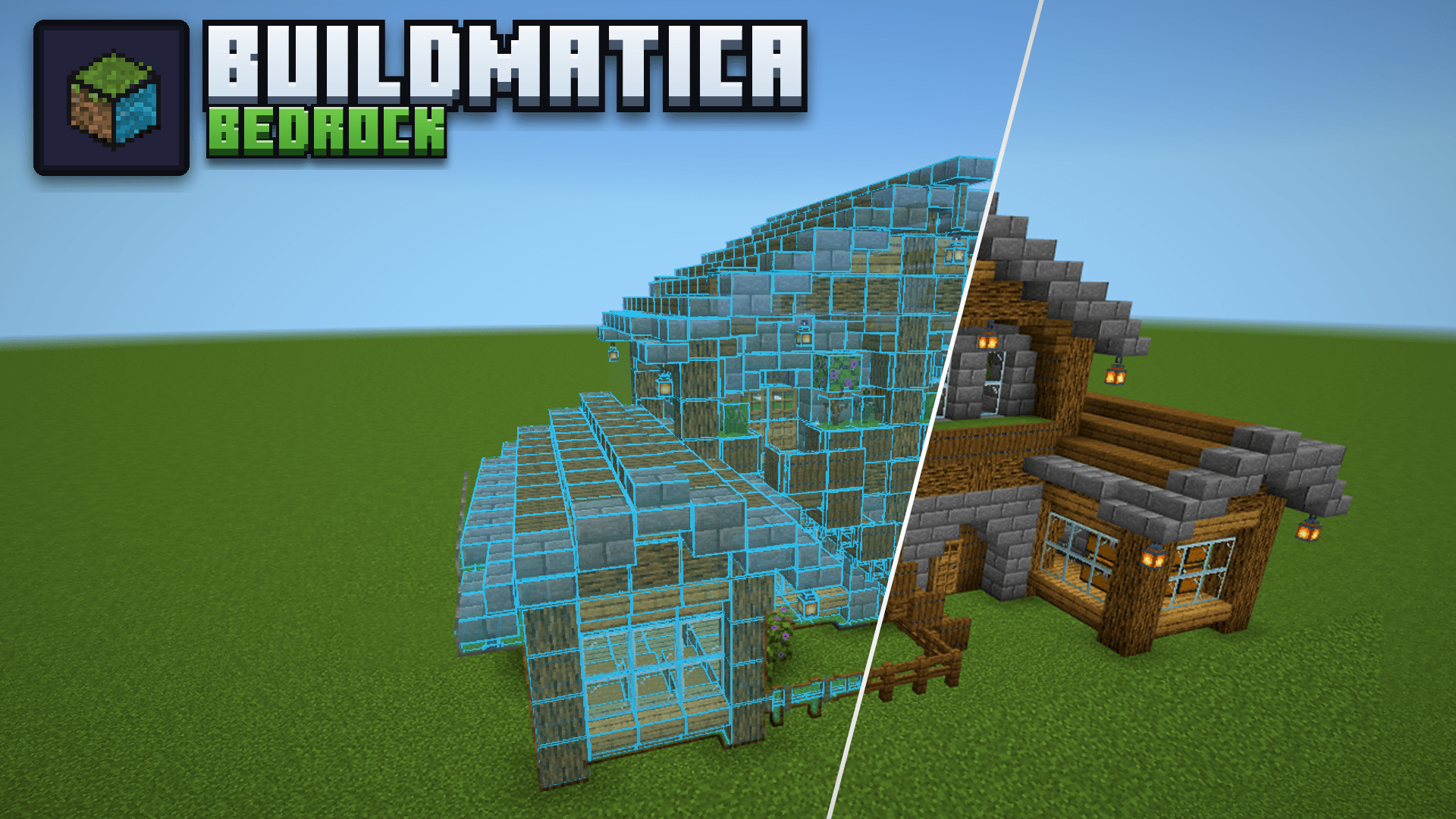
Buildmatica turns any build or farm into a see-through hologram in your world, so you can build the exact same thing block by block.
It's like the Litematica mod, but made for Minecraft Bedrock. It's a texture pack, so it works on servers and Realms too.
Features
Hologram on an armor stand
Give an armor stand your build's item, and the hologram shows up.
Turn with the projector
Tap the projector to turn the build.
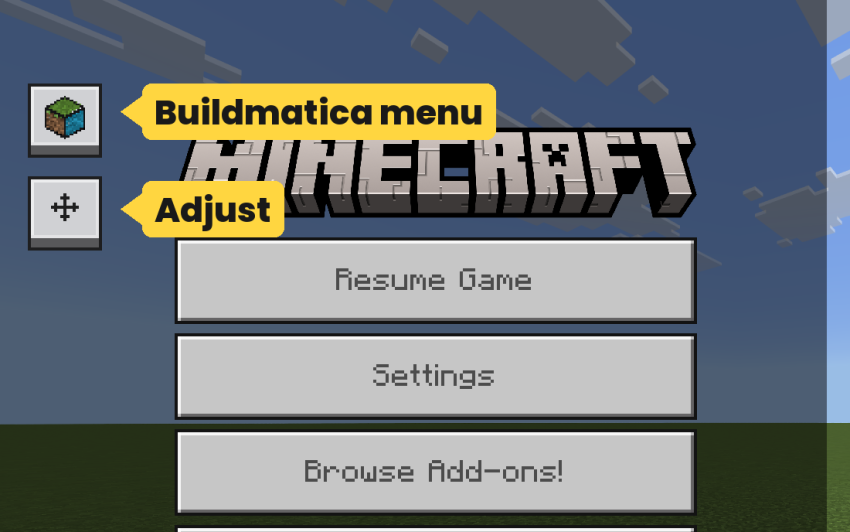
Buildmatica buttons
Open the Buildmatica menu or Adjust right from the pause screen.
Turn in Adjust
Turn the build left or right.
Pick a build in Adjust
Switch to any build in your pack without changing the armor stand's item.


Layer by layer
Show one layer at a time, or the layers below or above it.
Height
Move the build up or down.
Move
Push the build left, right, far or near.
Look
Make the hologram more or less see-through, or hide the armor stand.
Grid
Change the grid lines and their color.
Show one block
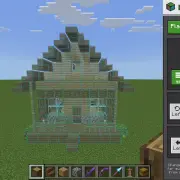
Move the Block slider in Look to show only one type of block, like only Oak Logs or only Stone.
Move it back to All to see the whole build again.
Block check
Right block or wrong block and Build progress only show when you turn on Block check in your builds pack settings.
Click the gear icon next to your builds pack (like Starter Builds) in Global Resources.
Move the Block check slider to On. It is Off by default, which is lighter on your device.
Right block or wrong block
Needs Block check turned on.
Place the right block and it turns green.
Place the wrong block and it turns red, so you know what to fix.
Note about Block check
Right block and wrong block is not 100% accurate. I made it as good as I could, but Bedrock has some limits I could not get around.
Blocks from the same group count as the same block. For example, if you place Stone, Cobblestone or Stone Bricks in a stone spot, it will still show as right.
The same goes for planks: any type of plank in a plank spot will show as right.
Sorry about this, there was nothing more I could do here.
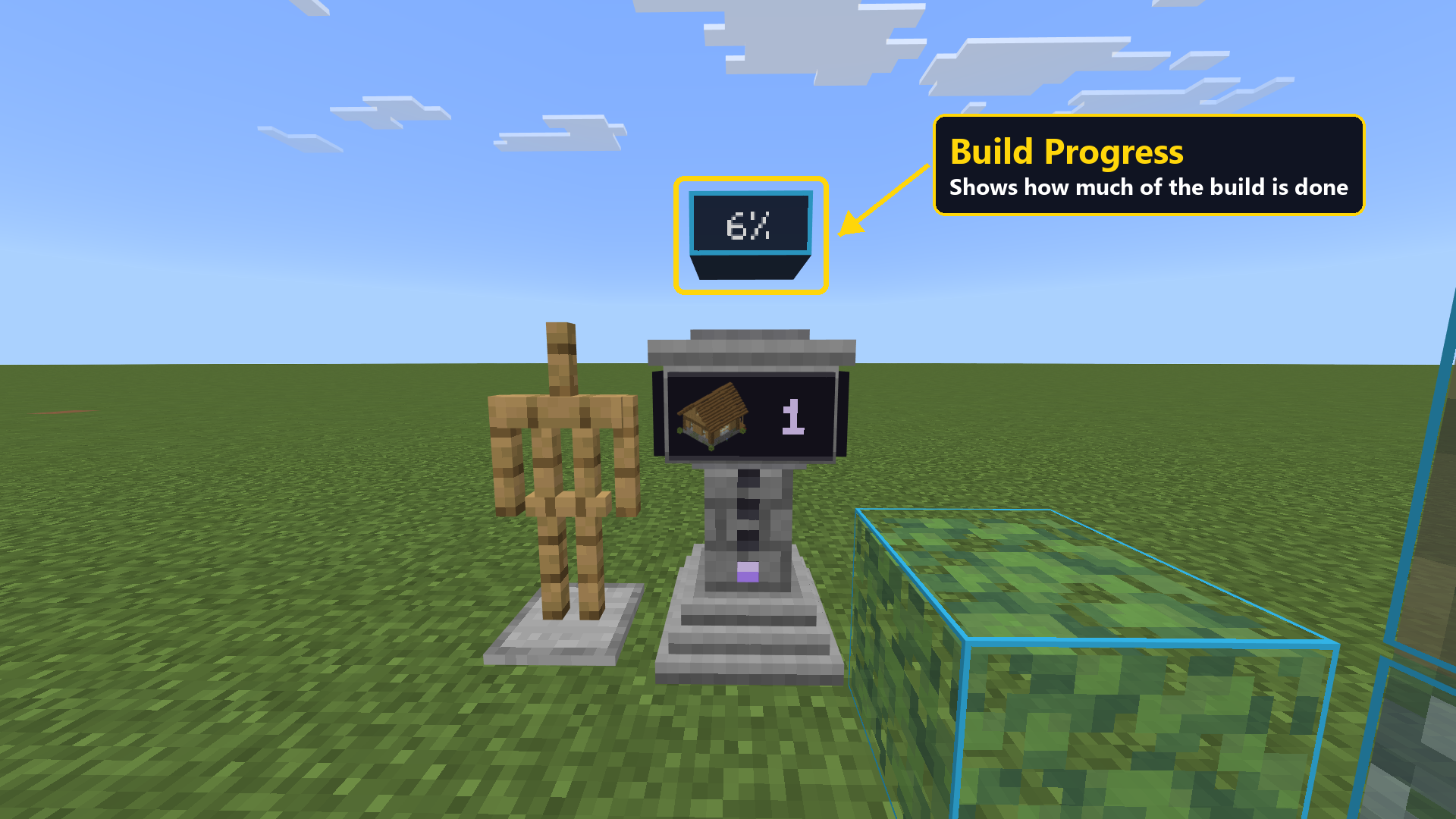
Build progress
Needs Block check turned on.
The number above the projector shows how much of the build is done.
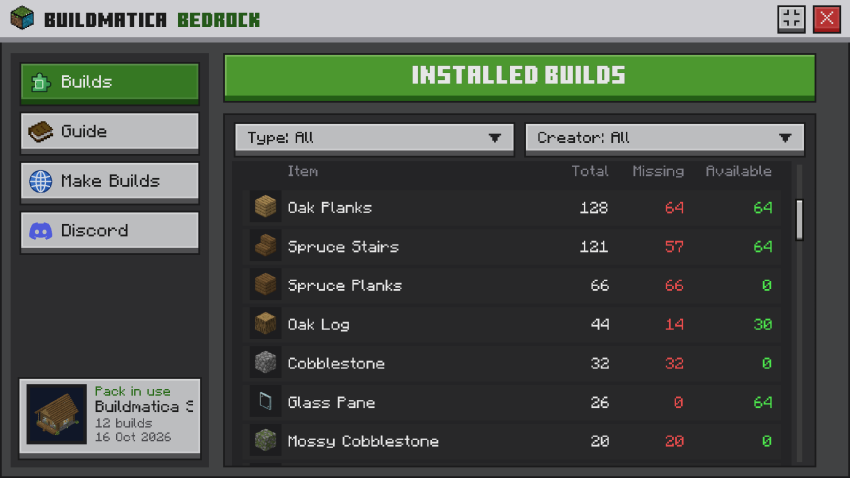
Buildmatica menu
See all your builds and the item that shows each one.

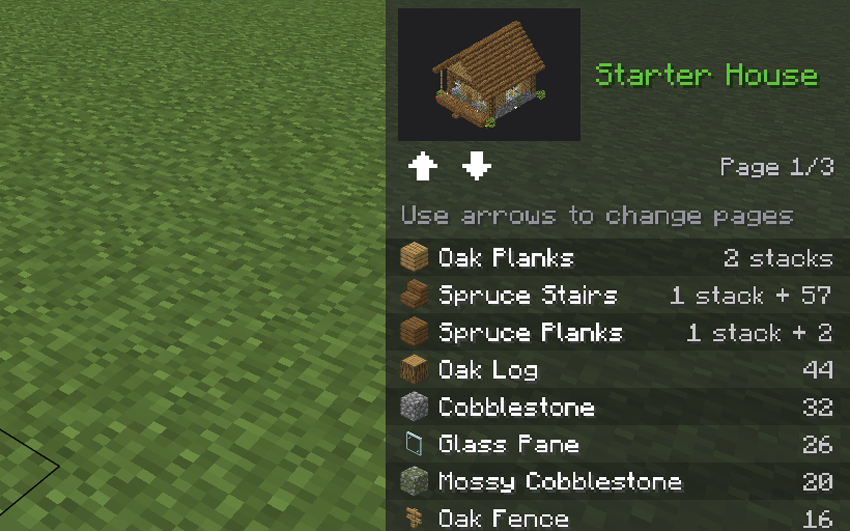
Material list
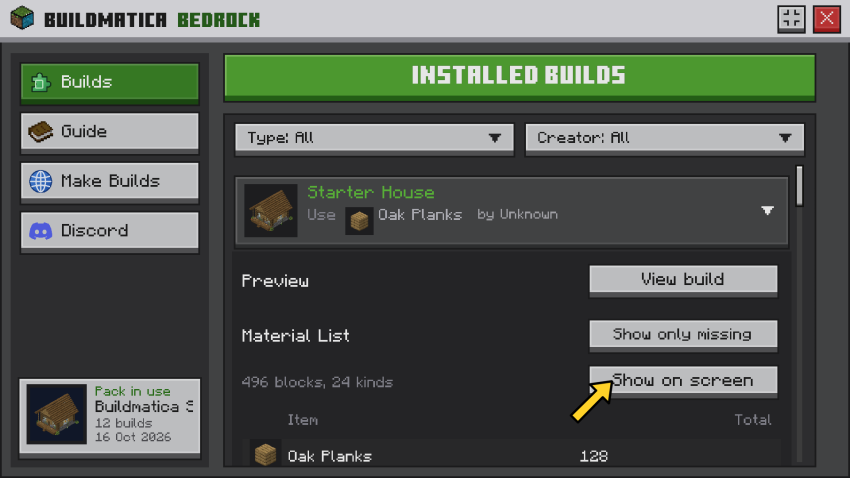
Open a build to see every block it needs: how many in total, how many are missing and how many you have.
Block list on screen
Press Show on screen and the list stays on your screen while you play. Get blocks and the list counts them. When you have enough of a block, it turns green.

How to make custom builds
Make your builds pack here: voxenmc.com/buildmatica
On Windows, you can export a build with a Structure Block. On mobile, the Export button often doesn't work, so use this tool instead: voxenmc.com/structure-extractor
Just load the world your build is in, select the build and export it.
Good to know: Java + Bedrock servers
On Java + Bedrock (Geyser) servers, your builds don't show on the armor stand. You need a small fix pack for this.
Get it here: voxenmc.com/buildmatica/java-servers
Starter Builds
The Starter Builds pack is only there so you can test Buildmatica.
Turn it on above the main pack, then give an armor stand one of these items.
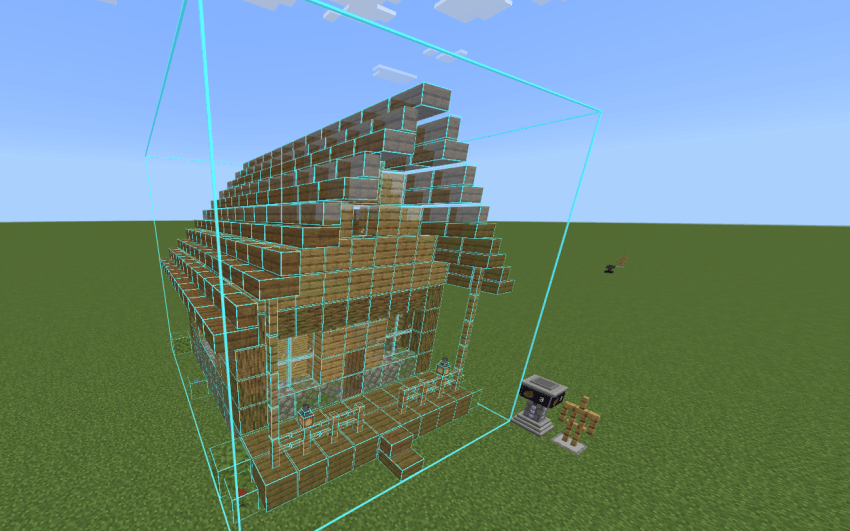
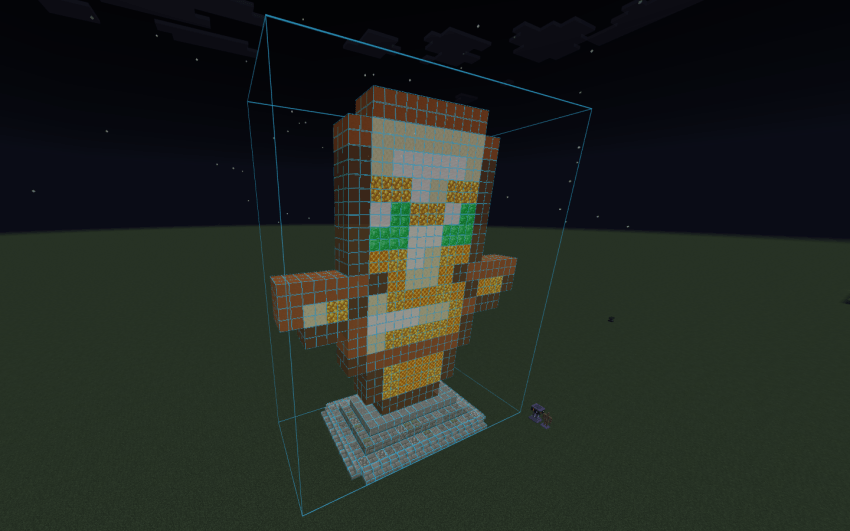
Click the spoiler below to see pictures of all the Starter Builds.
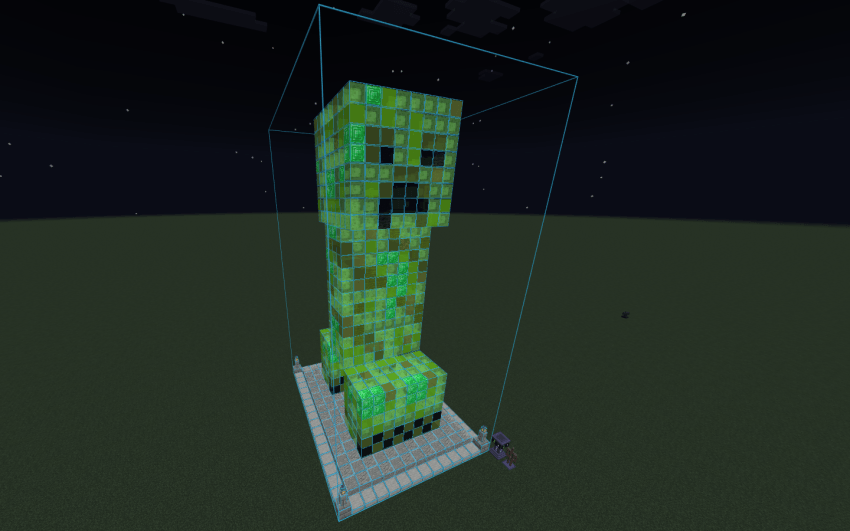
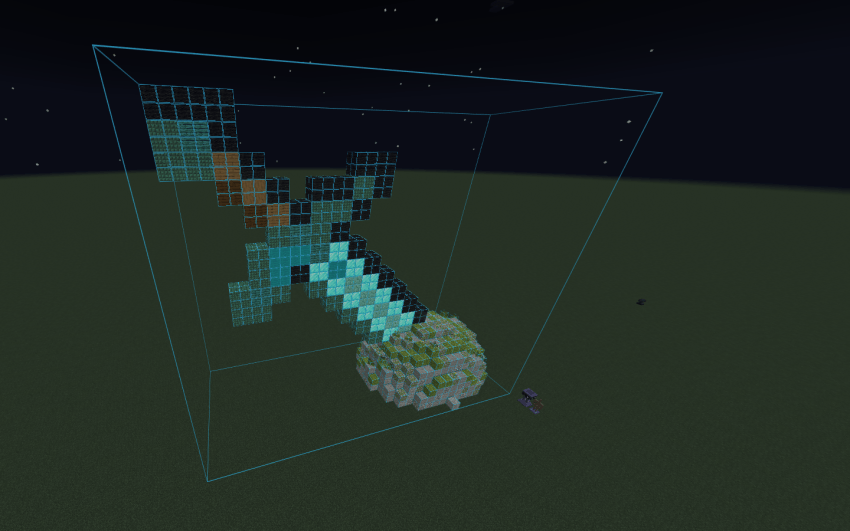
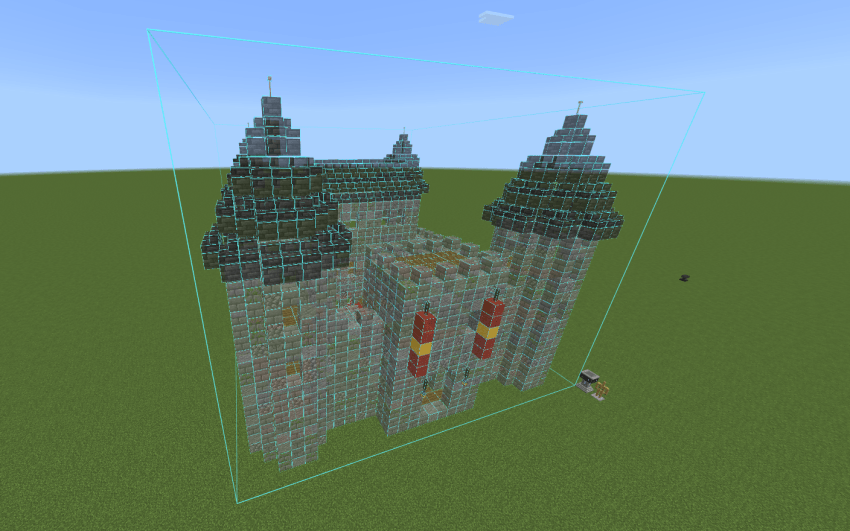
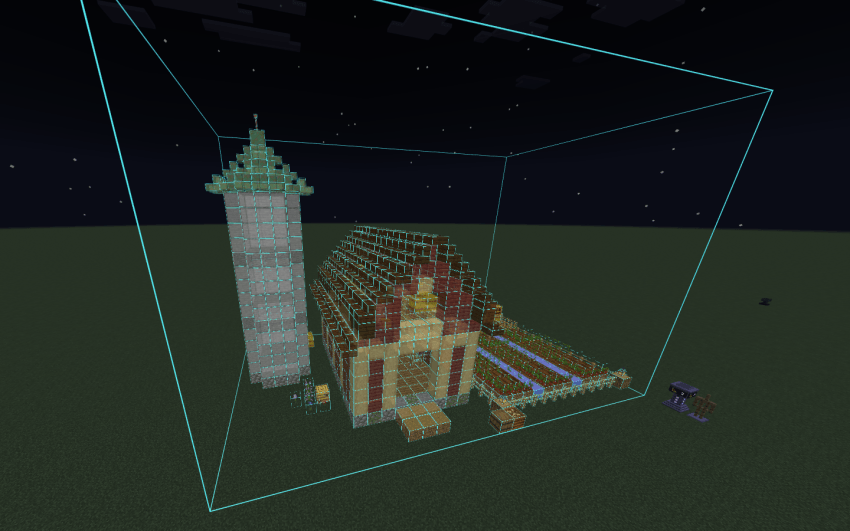
| Give the armor stand | Build |
|---|---|
| Oak Planks | Starter House |
| Spruce Log | Log Cabin |
| Cherry Sapling | Cherry Blossom House |
| Block of Quartz | Modern House |
| Sandstone | Desert House |
| Brick | Medieval House |
| Iron Sword | Stone Castle |
| Wheat | Barn Farm |
| Bread | Windmill |
| Totem of Undying | Totem Statue |
| Gunpowder | Creeper Statue |
| Diamond Sword | Sword in Stone |
Want your own builds? Make them here: voxenmc.com/buildmatica
Found a bug or have an idea? Join my Discord server and let me know.

The Ultimate Guide to Buildmatica
If you are exploring the vast world of Minecraft modifications, Buildmatica by VoxenMC2 is a standout texture that deserves your attention. With over 141,177 downloads, it has become a staple for players looking to enhance their experience. As the creator describes it, this project is "Litematica for Bedrock: shows builds as hologram blueprints so you can build them block by block.". Whether you are a veteran builder constructing massive cities, or simply a casual player looking to upgrade your survival world, this guide will provide you with all the essential details on how Buildmatica alters the game.
What Makes It Special?
Unlike standard textures that simply alter superficial elements, Buildmatica introduces a wide array of visual and mechanical features designed to seamlessly blend into the vanilla aesthetic. VoxenMC2 has clearly spent significant time refining the project to ensure that every aspect feels polished and responsive for version 1.21.
Installation Guide
Getting Buildmatica up and running is straightforward. Follow these step-by-step instructions:
- Verify Your Version: Ensure your Minecraft launcher is set to version 1.21.
- Install Mod Loader (if required): If this is a mod, download the compatible loader (Forge, Fabric, NeoForge).
- Download the File: Click the secure download button above to retrieve the official file from CurseForge.
- Move the File: Place the downloaded file into your `mods`, `shaderpacks`, or `resourcepacks` folder depending on the texture type.
- Launch and Enjoy: Open Minecraft, navigate to the respective settings menu, and activate Buildmatica.
Compatibility & Performance
Compatibility is robust. Buildmatica is designed specifically for version 1.21, taking full advantage of the latest engine optimizations. During typical gameplay, this addition maintains a stable frame rate, though lower-end laptops might experience slight stuttering. We recommend pairing this with performance boosters like Sodium or Iris to guarantee a silky-smooth experience.